
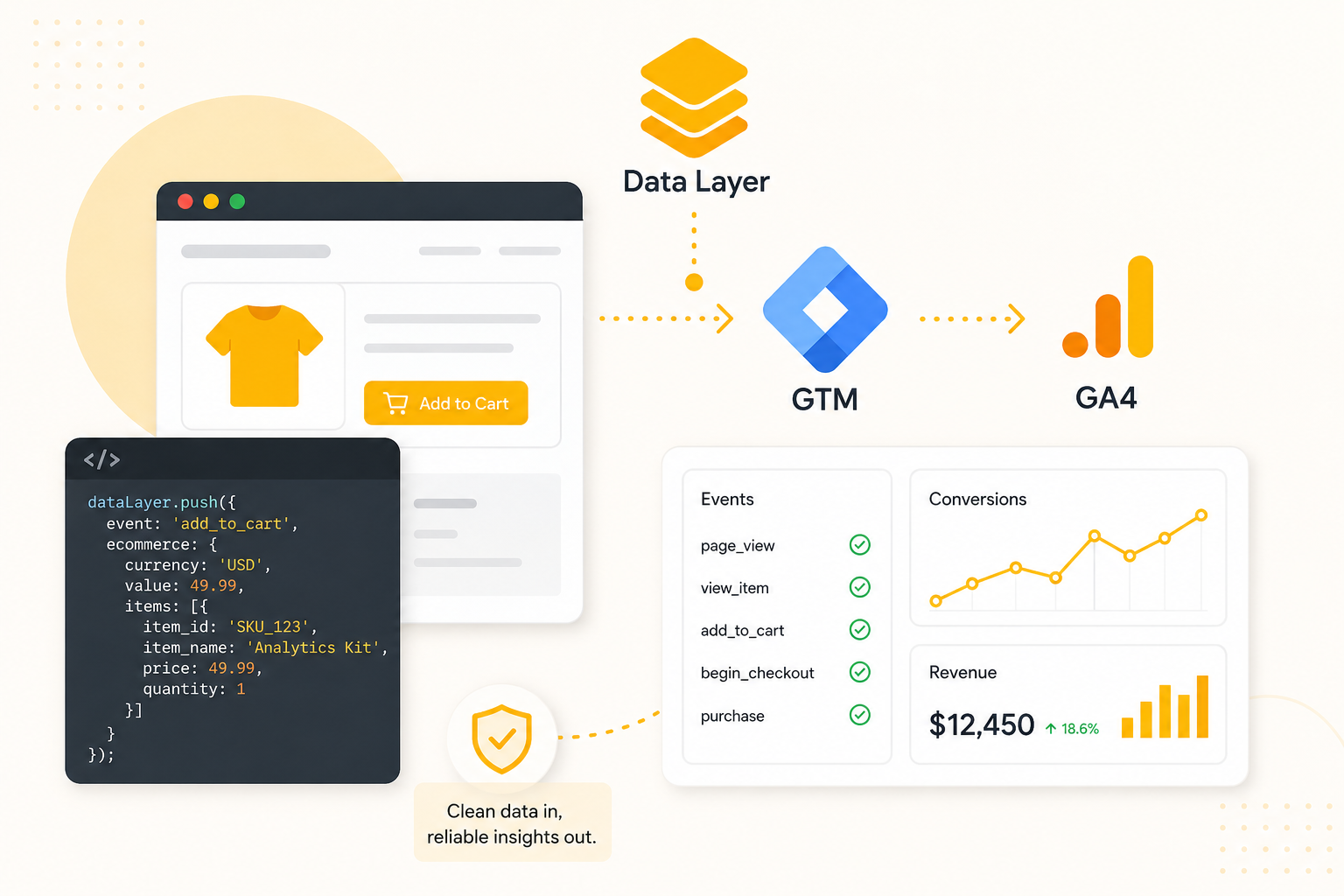
Why Your GA4 Data Is Only as Good as Your Data Layer
Most analytics problems aren’t GA4 problems. They’re data layer problems.
When marketers and product teams complain that their GA4 numbers look wrong, or that conversions aren’t tracking, or that ecommerce revenue doesn’t match their backend the root cause is almost always the same: the data layer is broken, inconsistent, or was never properly set up to begin with.
A clean data layer is the foundation that everything else sits on. Get it right, and GA4 and Google Tag Manager work beautifully together. Get it wrong, and no amount of GTM tag tweaking will fix what’s coming out the other side.
This guide walks you through exactly how to build a data layer that’s structured correctly for GA4, plays well with GTM best practices, and holds up as your site and tracking needs grow.
What Is a Data Layer and Why Does It Matter for GA4
The data layer is a JavaScript object that sits on your website and acts as a structured communication channel between your site and your tag management system. Instead of scraping values from the DOM, pulling prices from product titles, reading user IDs from hidden inputs, your data layer presents the information that tracking needs in a clean, reliable format.
For GA4 and GTM, the data layer looks like this:
window.dataLayer = window.dataLayer || [];
Every time something meaningful happens on your site a page loads, a product is viewed, a user adds something to their cart your development team pushes an object into that array:
dataLayer.push({
event: ‘add_to_cart’,
ecommerce: {
currency: ‘USD’,
value: 49.99,
items: [{
item_id: ‘SKU_001’,
item_name: ‘Analytics Starter Kit’,
price: 49.99,
quantity: 1
}]
}
});
GTM listens to that array. When it sees an event it recognises, it fires the relevant tags sending the data to GA4, ad platforms, or anywhere else you need it to go.
This is the right way to track. It’s reliable, it doesn’t break when someone redesigns the page, and it puts your development team in control of what data gets surfaced rather than leaving analytics to scrape whatever it can find.
Step 1: Initialise the Data Layer Correctly
The first rule of data layer setup: initialise it before GTM loads.
If GTM loads before the data layer exists, it can miss events that fire early in the page lifecycle, particularly important for server-side rendered apps or pages where content loads fast.
In your page source, place this before the GTM snippet:
window.dataLayer = window.dataLayer || [];
The || [] part ensures that if the data layer already exists (for example, if another script has already initialised it), you don’t overwrite it. This is a small thing that prevents a surprisingly common class of data loss.
Step 2: Define Your Event Schema Before Writing Any Code
Before your developers push a single event, you need to agree on the schema. This is the equivalent of a tracking plan for your data layer a structured spec that defines:
- Every event name using GA4’s recommended naming conventions (snake_case, descriptive)
- Every property and its data type strings, numbers, arrays, booleans
- Which events are required vs. optional
- The shape of the ecommerce object for purchase flows
This matters because once data starts flowing into GA4, changing the schema is painful. Renaming an event means creating a new event in GA4 and losing historical continuity. Getting the schema right upfront is almost always worth the extra planning time.
GA4’s recommended event taxonomy
GA4 has a set of recommended events standardised event names and property structures for common interactions. Using them gives you automatic compatibility with GA4’s built-in reports and conversion tracking. The most important ones for most businesses:
- page_view fires on every page load
- view_item when a product or content page is viewed
- add_to_cart when a user adds something to their cart
- begin_checkout when the checkout flow starts
- purchase when a transaction completes
- sign_up when a user creates an account
- login when an existing user authenticates
Stick to these names where they fit your use case. Custom events are fine for things that don’t have a recommended equivalent but don’t reinvent the wheel when GA4 already has a standard for it.
Step 3: Structure Your Ecommerce Data Layer Correctly
Ecommerce tracking is where data layer mistakes are most costly and most common. GA4’s ecommerce tracking requires a specific structure, and even small deviations cause data to not appear in your commerce reports.
The GA4 ecommerce object
Every ecommerce event needs a consistent items array. Each item in that array should include:
- item_id your SKU or product identifier
- item_name the product name
- item_category product category (and item_category2 through item_category5 for nested categories)
- price unit price as a number, not a string
- quantity how many units
- item_brand brand name if applicable
- item_variant size, colour, or other variant
The purchase event also needs a transaction_id at the top level of the ecommerce object, along with value (total revenue) and currency. Missing transaction_id is one of the most common reasons purchase events appear in GA4 but don’t show revenue.
Clear the ecommerce object between events
This is a detail that catches a lot of teams off guard. GA4 and GTM persist ecommerce data in the data layer until it’s explicitly cleared. If a user views product A, then views product B, and you don’t clear the ecommerce object between those events, the second view_item event may carry stale data from the first.
The fix is simple push a null ecommerce object before each new ecommerce event:
dataLayer.push({ ecommerce: null });
dataLayer.push({
event: ‘view_item’,
ecommerce: { … }
});
Make this a rule in your implementation spec and enforce it with every developer working on ecommerce tracking.
Step 4: Set Up GTM to Read Your Data Layer
Create data layer variables in GTM
Once your developers are pushing events to the data layer, GTM needs to know how to read them. In GTM, you create Data Layer Variables that map to specific keys in the data layer object.
For example, to read the transaction_id from a purchase event:
- In GTM, go to Variables > New > Variable Type: Data Layer Variable
- Set the Data Layer Variable Name to ecommerce.transaction_id
- Name the variable DLV – Transaction ID
Create a variable for every data layer property you need to pass to GA4 event parameters like value, currency, items, and any custom dimensions your reporting requires.
GTM best practices for trigger setup
Your GTM triggers should listen for the custom events you’re pushing from the data layer, not generic DOM click or page view triggers where you can avoid it. This gives you precise control over when tags fire.
- Use Custom Event triggers that match your data layer event names exactly
- Keep trigger names consistent with your event names purchase trigger for the purchase event
- Use trigger groups where multiple conditions need to be true
- Always test in GTM Preview mode before publishing any trigger changes
Step 5: Test Everything Before It Goes Live
A data layer implementation should never go to production untested. GTM’s built-in Preview mode and GA4’s DebugView give you everything you need to verify the setup before real user data flows through.
GTM Preview mode checklist
- Does each data layer event appear in the GTM Preview panel?
- Is the correct tag firing for each event?
- Are all data layer variable values populating correctly in the tag summary?
- Is the ecommerce object being cleared between events?
- Are tags firing the correct number of times not duplicating?
GA4 DebugView checklist
- Are events appearing in DebugView in real time?
- Does each event carry the correct parameters?
- Is the items array structured correctly for ecommerce events?
- Are user properties and IDs being passed where expected?
Run through your full user journey from landing page to purchase confirmation in Preview mode before signing off on any implementation.
Common Data Layer Mistakes to Avoid
Letting developers scrape the DOM instead of pushing to the data layer
This is the most common shortcut and the most damaging. DOM scraping is brittle. It breaks when someone changes a CSS class, renames a div, or restructures the page layout. Push data explicitly from the server or application layer wherever possible.
Using inconsistent data types
If the price is sometimes a string (‘49.99’) and sometimes a number (49.99), GA4 will have trouble processing it consistently. Define types in your schema and enforce them in code review.
Not versioning your data layer schema
As your product evolves, your tracking needs will change. Treat your data layer spec like code version it, document changes, and communicate schema updates to both the analytics team and the development team before they go live.
Skipping the QA step
No implementation should go live without a full test pass in GTM Preview and DebugView. What looks right in the code review often has small errors, a missing property, a wrong key name, a trigger that fires twice that only becomes visible when you actually test the full user flow.
A Clean Data Layer Pays for Itself
Setting up a data layer properly takes more effort upfront than hacking together tags that scrape what they need. But the payoff is significant: your GA4 data is reliable, your GTM setup is maintainable, and when something breaks, you have a clean architecture to debug rather than a mess of fragile triggers and DOM-dependent variables.
For ecommerce businesses, the stakes are even higher: accurate purchase and revenue data directly affects how you measure ROAS, optimise campaigns, and allocate budget. A bad data layer means bad decisions based on bad data.
At Kaliper, we design and implement data layers as part of our GA4 and GTM engagements. We build the schema, work with your development team on the push events, validate everything in DebugView, and make sure your analytics stack is built on a foundation you can trust.
Need a solid data layer foundation? Kaliper’s analytics team designs and validates GA4 and GTM implementations so your tracking is accurate from day one.
More field notes
All field notesWorking through this in your own stack?
We do this for a living. Bring one dashboard you don't trust and we'll tell you why the number is wrong.